


How to Check a Used Laptop Before Buying

Most used laptops sold in Pakistan are fine. That's worth saying up front, because buying guides tend to make the whole market sound like a trap.
The problem is the minority that aren't fine — and the fact that those machines rarely announce themselves. A laptop with a battery at 55% of its original capacity feels perfect for the ten minutes you spend with it in a shop. So does one that shuts down under load, or one whose board was heated back to life six months ago. The faults that cost you money are almost never the ones you can see.
So the goal isn't to inspect harder. It's to run the right checks in the right order, and to know which numbers mean walk away.
This guide takes about fifteen minutes to work through. It covers what to settle before you go, the software checks that catch the most problems fastest, the physical inspection, and the load test nearly everyone skips. It also covers what to do if you're buying online and can't touch the laptop before paying — which is how a growing share of used laptops in Pakistan now change hands.
Before you go: settle three things first
Confirm the exact model and generation in writing, not just "i5 8th gen". A Dell Latitude 5490 and a Latitude 5480 look nearly identical and are a generation apart. Ask for the full model number.
Tell the seller you'll be testing the laptop before you pay, and that you'll need about fifteen minutes and a power socket. A seller who agrees readily is a good sign. One who gets uncomfortable has told you something useful before you've run a single check.
Agree the return terms before money moves. What happens if a fault appears after purchase? Confirm the checking period, what it covers, and how a fault should be reported before you pay.
If you are also trying to judge whether the asking price is fair, use our used laptop price in Pakistan guide to compare processor generation, RAM, SSD, battery condition and overall value before paying.
The five-minute software check
Do this first. It's fast, it needs no tools, and it catches more real problems than any amount of looking at the body.
Battery: the one command that matters
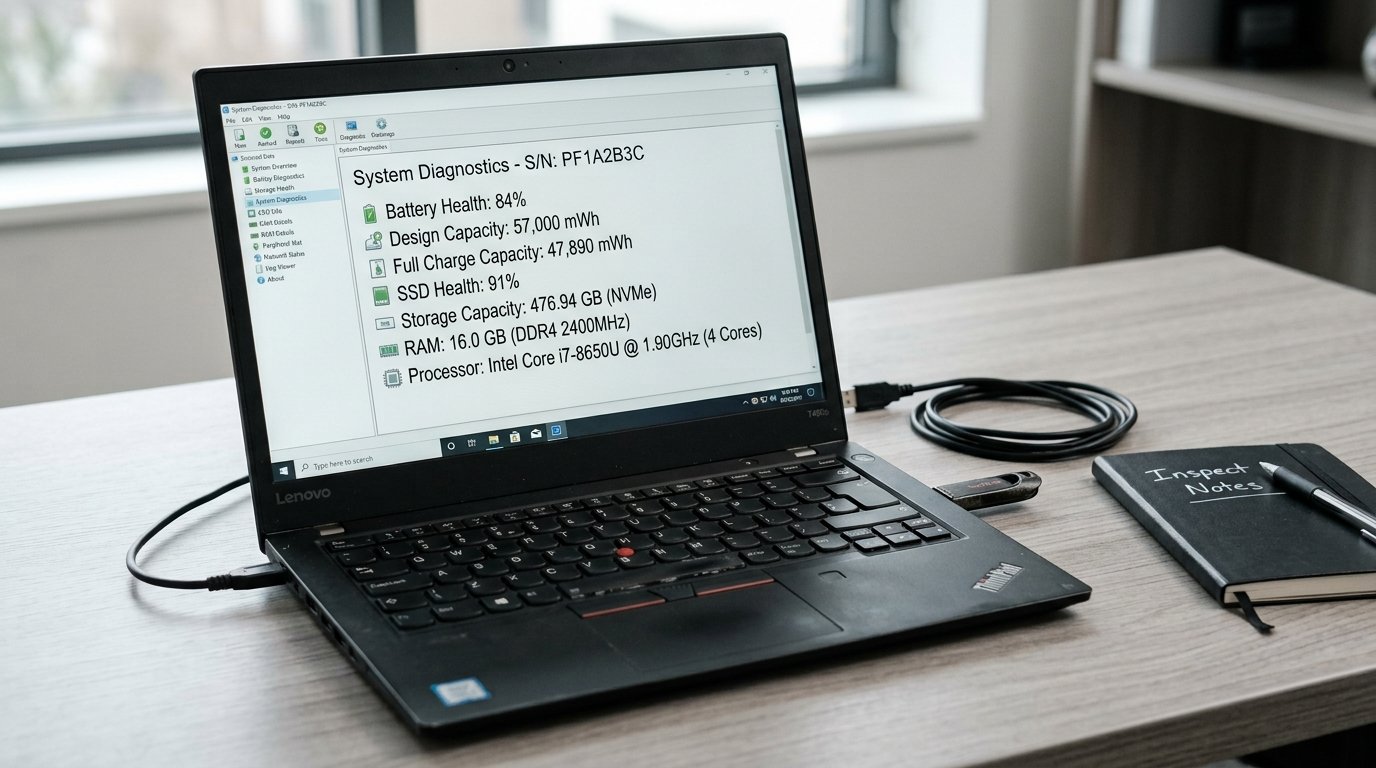
Windows can tell you exactly how worn a battery is. Open Command Prompt and run:
powercfg /batteryreportWindows writes an HTML file to your user folder — the command tells you the path. Open it in any browser. Both Dell and HP document this in their own support material, so it works the same way on essentially any Windows laptop.
Two numbers matter. Design Capacity is what the battery held when new. Full Charge Capacity is what it holds now. Divide the second by the first.
- Above 90% — effectively like new
- 80–90% — normal wear for a used machine
- Below 80% — meaningful degradation; factor a replacement into your price
- Below 60% — near end of life
Also look at the cycle count if the report shows it. Laptop batteries are typically rated for around 300–500 full charge cycles before capacity drops noticeably. Past roughly 800, plan on buying a battery.
None of this means don't buy. A replacement battery is a known, priceable cost. What you're avoiding is paying a healthy-battery price for a tired one.
Storage health
Storage is the other component that fails quietly. Check the drive's SMART data — the self-monitoring system built into every modern SSD and hard drive — using any free drive-health utility.
You're looking at three things: the overall health or wear percentage, the power-on hours, and whether there are any reallocated or pending sectors. Reallocated sectors on an SSD are a warning worth taking seriously. High power-on hours on an otherwise clean drive are normal for ex-corporate stock and not by themselves a problem.
Do the specs actually match the listing?
Don't trust the sticker on the palm rest. Stickers survive part swaps.
Open Settings, then System, then About, and read the processor, RAM and system type off the operating system itself. Check the storage capacity separately under Storage. If the listing said 8GB RAM and 256GB SSD, confirm both here. A Dell Latitude 5490 that's advertised as 8th-generation should report an 8th-generation chip, not a 7th.
Windows activation and Windows 11 eligibility
Check Settings, then System, then Activation. An unactivated copy of Windows isn't a fault in the hardware, but it's a cost and a hassle you should know about before you agree a price.
Then check whether the machine can run Windows 11 at all. Microsoft's Windows 11 specifications require 8th-generation Intel Core processors or AMD Ryzen 2000-series and newer, along with TPM 2.0. The quickest way to confirm on a specific unit is Microsoft's PC Health Check tool. This matters more than it used to: Windows 10 stopped receiving free security updates in October 2025, so a laptop that can't move to Windows 11 has a shorter useful life than its specifications suggest.
The physical check, in the right order
Now look at the machine. Order matters, because the cheapest faults to spot are also the ones people notice last.
Screen
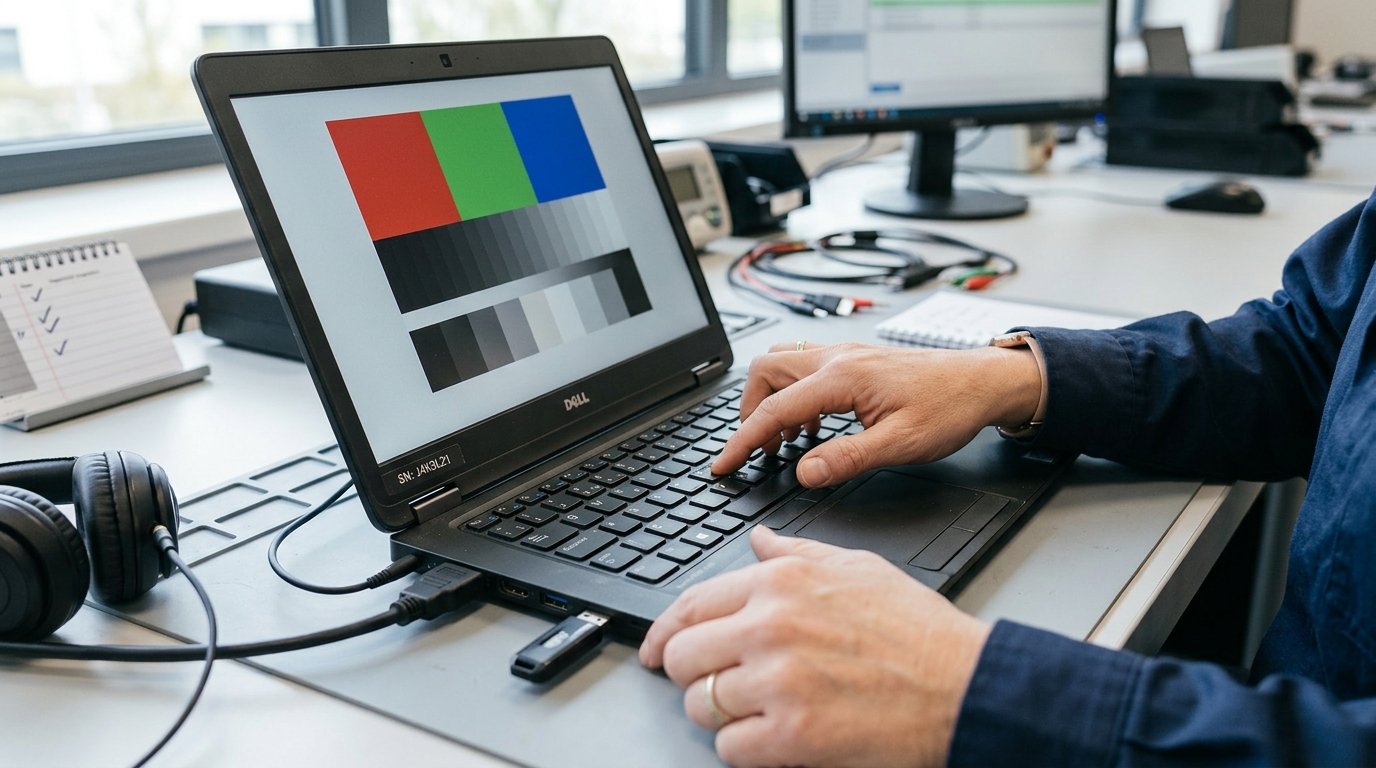
Set brightness to maximum and display a solid white image full screen. Dead or stuck pixels show up immediately, as do stains, pressure marks and discolouration.
Then display a solid black image in a dim room. This reveals backlight bleed and clouding around the edges, which a bright screen hides completely.
Tilt the lid back and forward while the screen is on. Flickering as the hinge moves usually means a damaged display cable — an expensive fix.
Keyboard and touchpad
Open a text editor and press every key in turn. You're looking for keys that don't register, keys that need extra force, and keys that type twice from one press. Double-typing is the fault most likely to pass a quick test and ruin your first week.
Test the backlight if there is one, at every level.
Run the touchpad across its whole surface, including the far corners. Test click, right-click, two-finger scroll and pinch zoom.
Hinges, chassis and screws
Open and close the lid slowly through its full range. It should move smoothly and hold at any angle. Grinding, sagging, or a lid that creeps shut on its own means worn hinges — and on some models, hinges eventually crack the plastic around their mounting points.
Press gently on the palm rest and the centre of the keyboard. If either sits high, feels arched, or clicks unevenly, stop and check the battery for swelling.
Turn the laptop over. Look at the screws and the seams — and see the repair section below for what you're looking for.
Every port, with a real device
Not a visual glance. Actually plug something in.
Carry a USB drive and use it in every USB-A and USB-C port. Plug headphones into the audio jack. If you'll use HDMI, bring a cable and test it. Check the SD reader and the LAN port if the machine has them. Connect to Wi-Fi and pair a Bluetooth device. Open the camera app, record a short voice memo and play it back through both speakers.
The load test most buyers skip
This is the check that separates a careful buyer from a hopeful one, and almost nobody does it.
Run the laptop hard for twenty minutes. Play a 4K video full screen, open twenty browser tabs, and leave something demanding running. Then pay attention to three things.
Temperature and noise. Fans spinning up is normal. A fan that screams from minute two, or one that makes a grinding or rattling sound, points to a worn bearing or a heatsink packed with dust.
Sustained performance. A laptop that feels quick for two minutes and sluggish by minute fifteen is throttling — usually old thermal paste or blocked vents. Often fixable, but it's a cost.
Stability. Any freeze, restart or shutdown under load is serious. Boards that have been through chip-level repair frequently behave perfectly while cool and fail once heat builds. Twenty minutes is roughly where that shows up.
Ten minutes of light browsing will tell you none of this.
How do you know if a used laptop has been repaired?
If you can get the bottom cover off — and with a seller's permission, it's worth asking — the board tells you a lot.
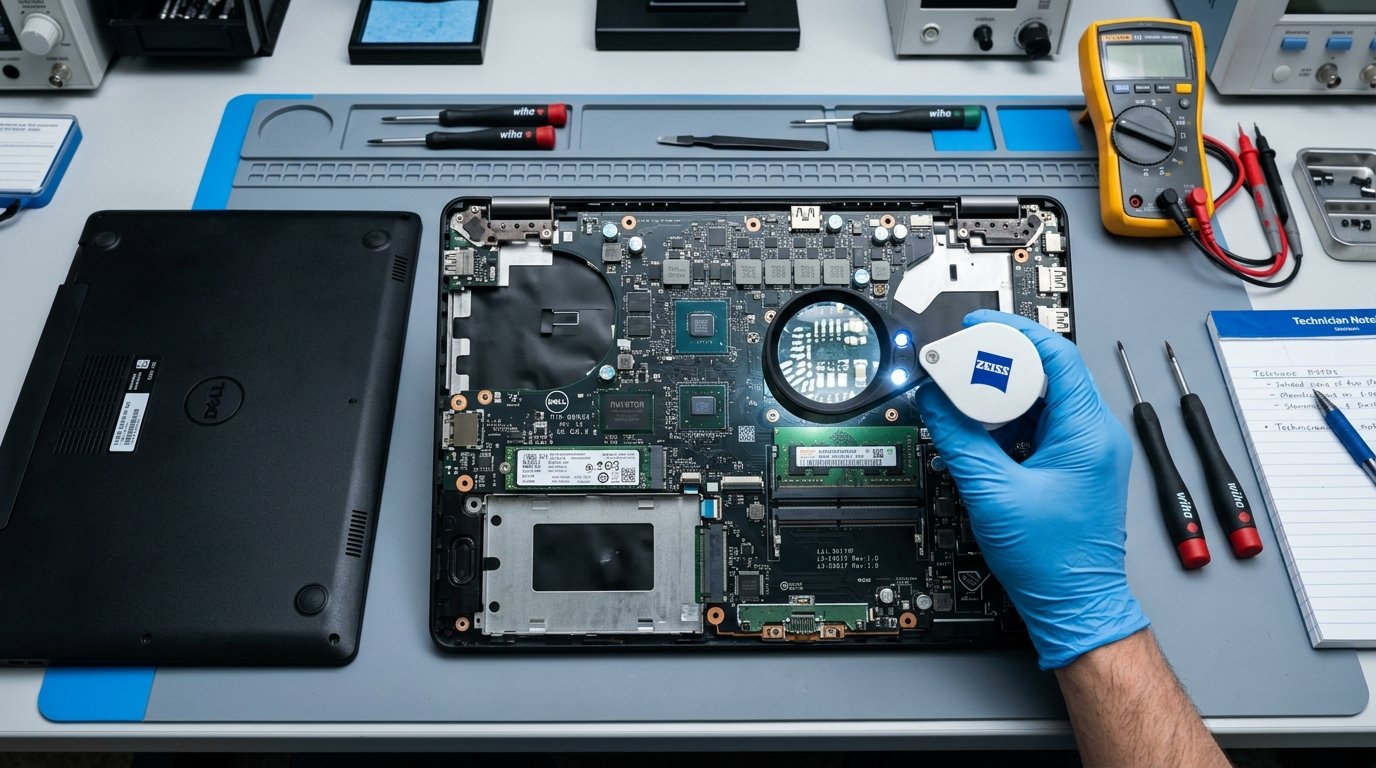
Look for solder that appears brighter, duller or a different colour than the joints around it. Look for a chip whose surface finish doesn't match the patina of its neighbours, which suggests it was replaced. Sticky amber residue is leftover flux from rework that was never cleaned off. Brown or blackened areas near a major chip mean heat, either from failure or from repair.
Even without opening it, the outside gives hints. Rounded or chewed screw heads mean tools have been in there. Missing screws, a bottom cover that doesn't sit flush, or gaps along the seam all suggest the machine has been opened more than once.
Be realistic, though. A careful technician leaves very little behind, and most buyers won't have a laptop stripped down before paying. That's the practical argument for buying from a seller whose sourcing rules exclude repaired units in the first place — which is exactly what LapBazar Certified covers.
What if you're buying online and can't inspect it first?
Most guides ignore this, which is odd, because a lot of used laptops in Pakistan now ship by courier to buyers who never see them beforehand.
You can still do most of this work — you just do it in a different order.
Before dispatch, ask the seller for photos and a short
video of the actual unit, not stock images. Ask them to run
powercfg /batteryreport and send you a screenshot of the
capacity figures. Ask for the drive's health reading. Ask for a photo of
the Settings, System, About screen showing the real specifications.
A seller who tests their stock will have these to hand. A seller who
won't produce them is telling you something.
Confirm the checking window in writing before you pay — how long you have, what it covers, and how to raise a fault.
Then run this entire checklist on day one, not day nine. That's the single most important habit for online buyers. A checking window only protects you if you actually use it early enough to act on what you find.
Five faults worth walking away from
Some problems are negotiable. These five aren't.
- A swollen battery. A lid that won't close flush or a raised trackpad. This is a safety issue, not a discount.
- A BIOS or supervisor password you can't clear. Common on ex-corporate machines and sometimes impossible to remove.
- Shutdowns or freezes under load. Whatever the cause, you're buying someone else's problem.
- Hinges cracking through the chassis. The repair often costs more than the laptop is worth.
- A seller who won't let you test it. The most reliable warning sign on this list.
The short version
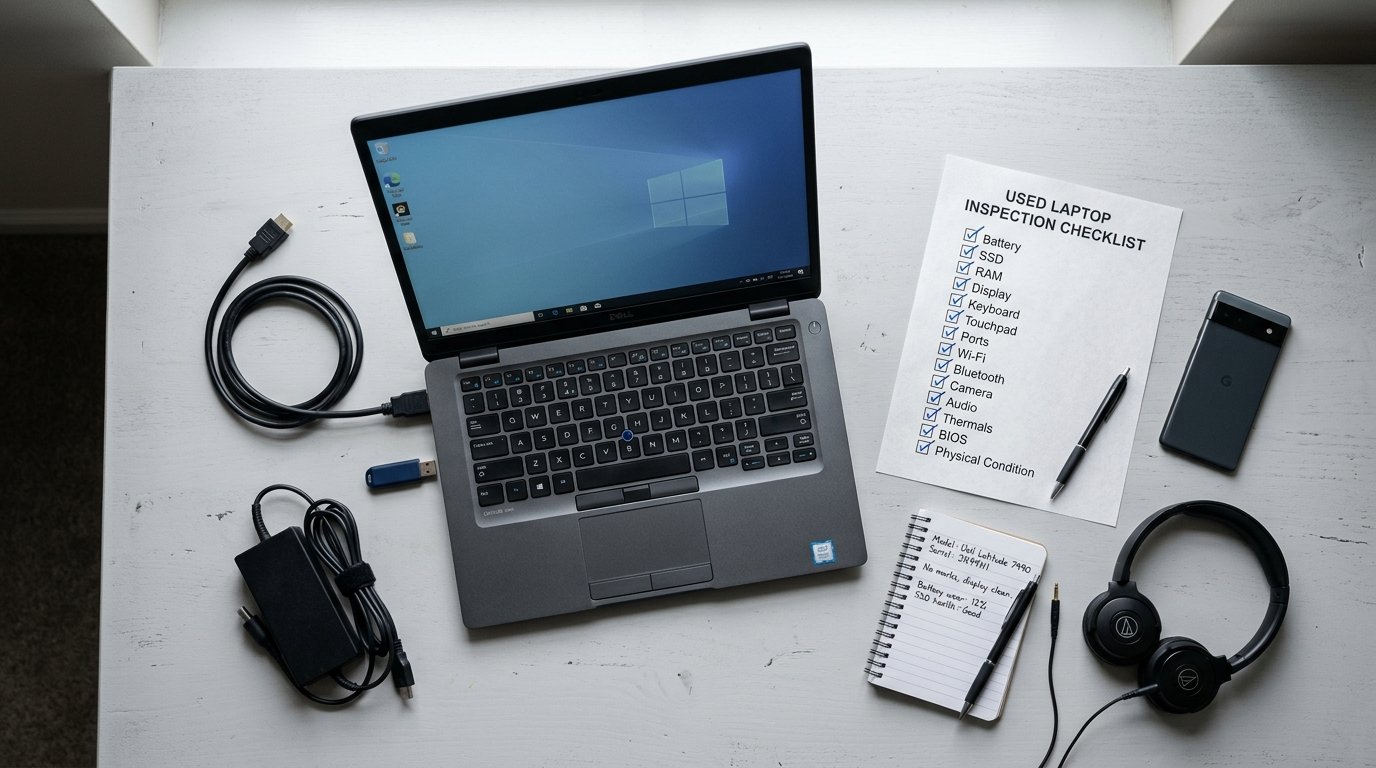
Fifteen minutes of structured checking removes most of the risk in buying a used laptop. Run the battery report and read the two capacity numbers. Check drive health. Confirm the specs against the operating system rather than the sticker. Test every key and every port. Then push the machine hard for twenty minutes, because that's when a marginal laptop stops pretending.
If you'd rather these checks were already done before the laptop reaches you, that's what we do on every unit — and selected products include a 30-day checking warranty so you can review the laptop after purchase as well.
Once you know how to inspect the condition of a laptop, the next step is choosing the right model for your budget and workload. See our best used laptops in Pakistan guide to compare practical Dell, HP and Lenovo options.
Looking for a professionally tested used laptop?
Browse tested used laptops from LapBazar, or tell us your budget and what you'll be using the laptop for.
Browse Tested Used Laptops
[…] a complete step-by-step inspection process, use our used laptop buying checklist to check battery health, SSD, display, keyboard, ports, physical condition and performance before […]
[…] our used laptop buying checklist for a step-by-step inspection process before […]